Notification Delivery Process
Ottu supports two methods for delivering notifications to customers: automatic and manual. The delivery method depends on the notification channel being used.
Automatic and Manual Channels
Email, SMS, and Integrated WhatsApp
These channels support both automatic and manual notification delivery:
-
Automatic Notification -- A notification is automatically sent to the customer when a specific trigger state occurs (e.g., payment created, payment paid, refund processed). No merchant action is required.
-
Manual Notification -- Merchants can also manually trigger a notification at any time by clicking the three-dot menu under the Action column in the Transaction Table. Select the icon for the desired notification channel (Email, SMS, or WhatsApp) to send the notification.
Manual notifications are useful when you need to resend a notification that the customer may have missed, or when you want to send an update at a specific time.
Manual WhatsApp Channel
The Manual WhatsApp channel does not send notifications automatically. Merchants must manually trigger every WhatsApp notification through the Transaction Table.

Delivery Summary
| Channel | Automatic | Manual |
|---|---|---|
| Yes | Yes | |
| SMS | Yes | Yes |
| Integrated WhatsApp | Yes | Yes |
| Manual WhatsApp | -- | Yes |
How to Manually Trigger a Notification
- Navigate to the Transaction Table in the Ottu dashboard.
- Locate the transaction you want to notify the customer about.
- Click the three-dot menu (action icon) at the end of the transaction row.
- Select the notification channel icon (Email, SMS, or WhatsApp).
- The notification is sent to the customer using the configured template for that channel and payment state.
My customer did not get the SMS or email
When a customer says the SMS, email or WhatsApp message was not received, first check whether Ottu sent it, then send it again.
Who can do it: any dashboard user who can see the transaction. Only an administrator can see why a message failed.
Check whether the message was sent
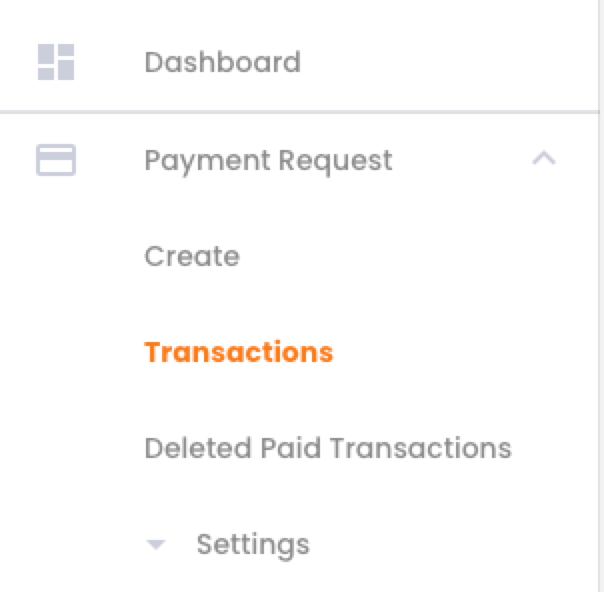
In the Ottu Dashboard sidebar, open the plugin, for example Payment Request, and click Transactions.
Find the transaction: above the table, choose a field in Select field, type the value in the Search box and click Search. Then click the transaction's ID to open its details. See How do I find one transaction?

Click Mail Logs in the list of sections on the right. Despite its name, it lists every email, SMS and WhatsApp message Ottu tried to send for this transaction.
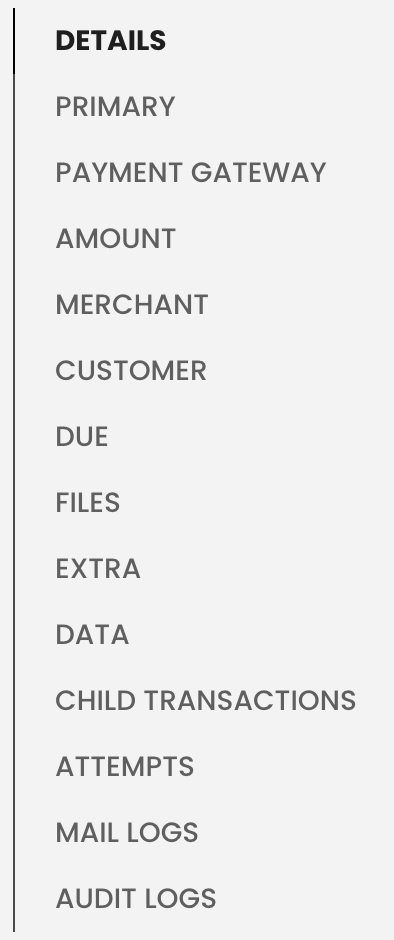
Open an entry and read:
- Is sent: a green icon means the message was sent, a red icon means it was not;
- Backend: the channel,
mail,smsorwhatsapp; - the address or phone number the message went to.
What the result means:
- No entry for the channel: Ottu did not try to send. The channel was not chosen for this transaction, or it is not set up. See Notifications.
- Sent, but to a wrong address or number: correct the customer's details on a new payment, or copy the payment link and send it yourself.
- Sent to the right address or number: Ottu handed the message to the email, SMS or WhatsApp provider. Ask the customer to check their spam folder or blocked senders, then send it again.
- Not sent: ask your administrator to read the reason (below).
See why a message failed (administrators)
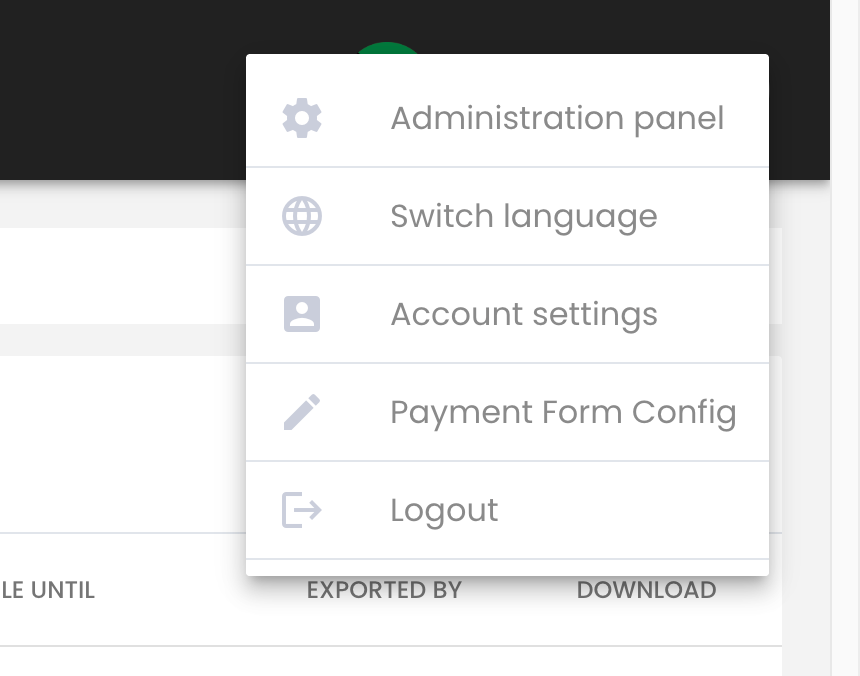
Click the three-dot menu in the top-right corner of the dashboard and click Administration panel.
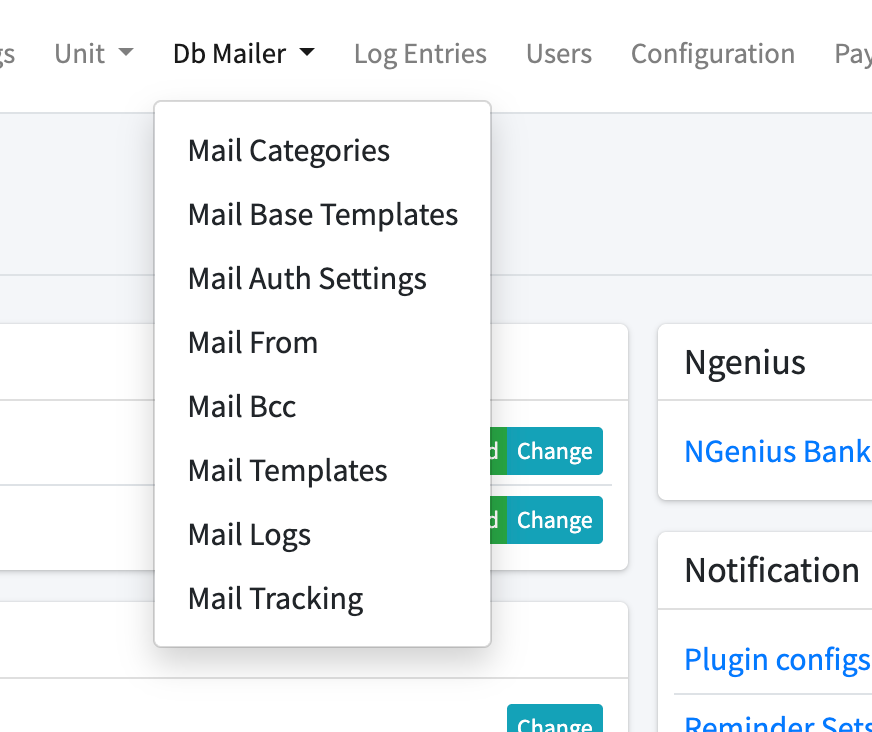
In the top menu, click Db Mailer, then Mail Logs.
Find the message. You can search by the customer's email or phone number, and filter by Is sent.
Open it and read Error message.
Send the message again
In the Transactions table, click the three-dot menu at the start of the transaction's row.
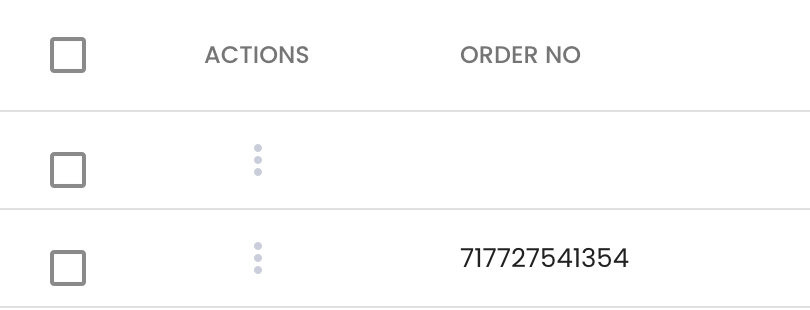
Choose Email, SMS or WhatsApp.
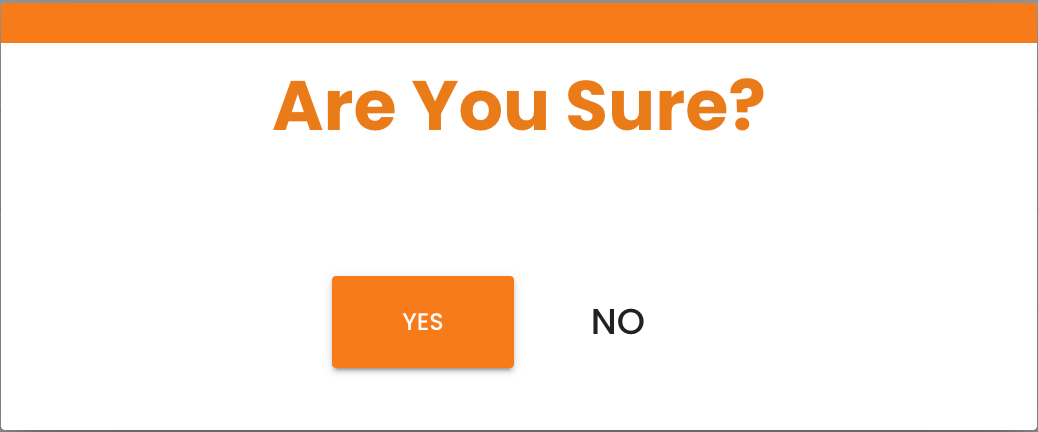
In the Are you sure? window, click Yes. The message Customer notified. appears.
For a payment link, the menu offers a channel only if it was chosen when the link was created and the link can still be paid. Otherwise copy the link and send it yourself.
What's Next?
- Email Notifications -- Learn about email notification setup and states
- SMS Notifications -- Learn about SMS notification setup and states
- WhatsApp Notifications -- Explore WhatsApp notification options
- Notification Templates -- Understand template availability across channels
- Transaction Insights -- Learn about the Transaction Table and payment monitoring