Create a Payment Link and Send It to Your Customer
A payment link is a secure page where your customer pays the amount you set. You create it in the Ottu Dashboard with the Payment Request plugin, and Ottu can send it to the customer by email, SMS or WhatsApp. You can also copy the link and send it yourself.
Who can do it: a user with the Can add payment requests permission. If you do not see Create under Payment Request, ask your account administrator for it. See Users and Access.
How do I send a payment link to my customer?
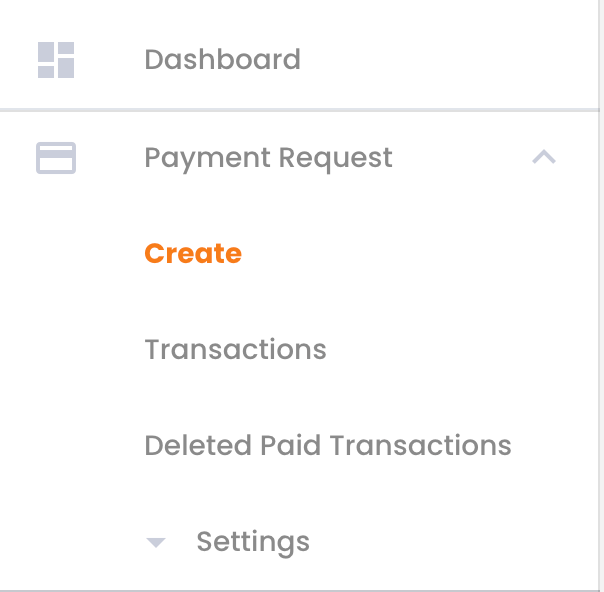
In the Ottu Dashboard sidebar, click Payment Request, then Create.
Enter the Amount. If your account has several currencies, choose the Currency code first.
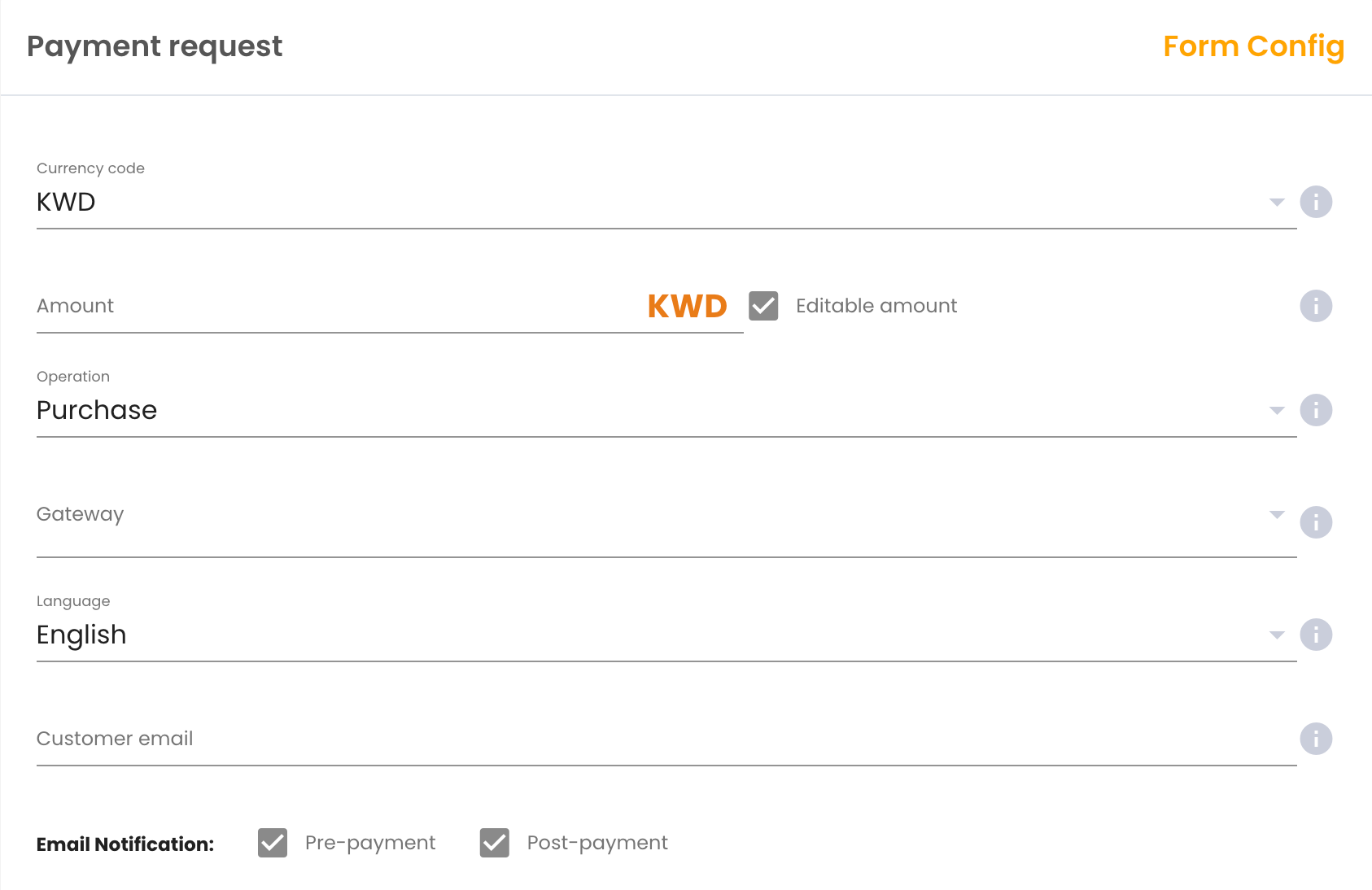
Choose the Gateway the customer will pay through. If you have only one, it is already selected.
Choose the Language of the payment page: English or Arabic.
Fill in the customer's details. To send the link by email, enter the Customer email. To send it by SMS or WhatsApp, enter the Phone.
Choose how Ottu sends the link. Tick Pre-payment next to each channel you want:
- Email Notification: > Pre-payment
- SMS Notification: > Pre-payment
- Whatsapp Notification: > Pre-payment
Optional: tick Post-payment for a channel to also tell the customer the result, for example that the payment was received.
Optional: under Config, change the Expiration time. After it, the link can no longer be paid.
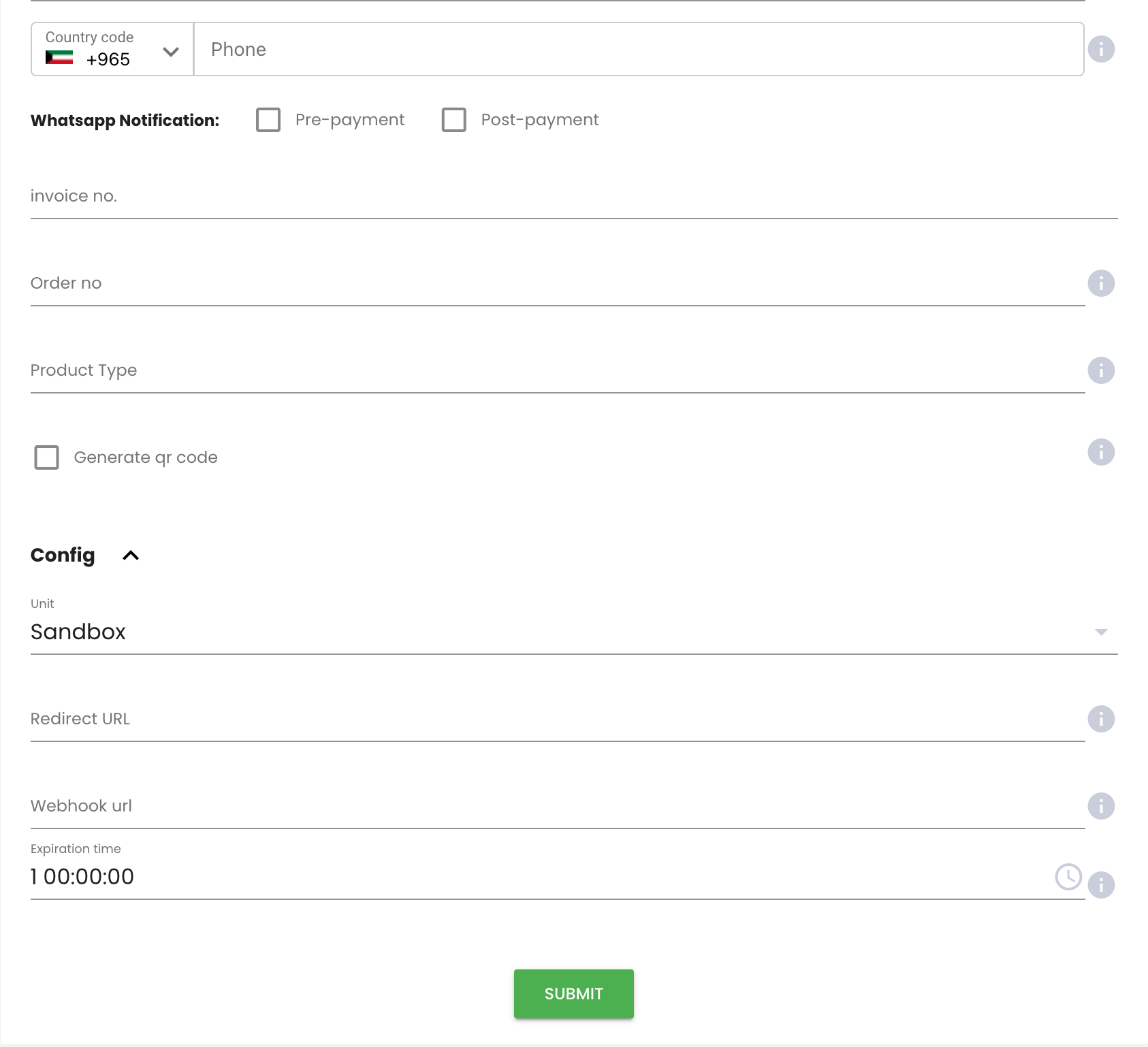
Click Submit.
Ottu creates the payment link, sends it through the channels you ticked, and opens the details of the new payment request.
You only see the fields and channels that are set up on your account. A notification channel appears when it has a provider and a message template: see Notifications. Fields such as First Name, Last Name and Phone appear when an administrator added them to the form: see Plugin Fields Configuration.
Copy the link and send it yourself
After you click Submit, the details page of the payment request shows the Payment URL.
- Click the copy icon next to Payment URL. The message Copied to clipboard appears.
- Paste the link into your own message to the customer, in any app.
The Payment URL is shown as long as the link can still be paid. To find it later, open Payment Request > Transactions and open the payment request's details.
Send the link again
If the customer did not receive the link or lost it, send it again while it can still be paid:
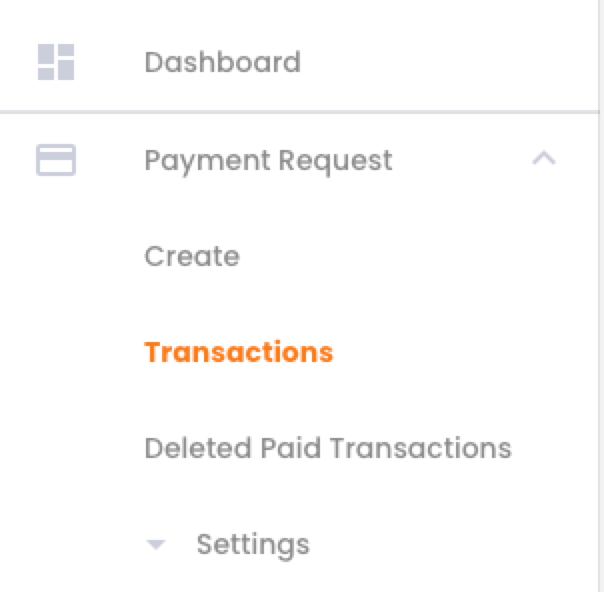
Open Payment Request > Transactions and find the payment request.
Click the three-dot menu at the start of its row.
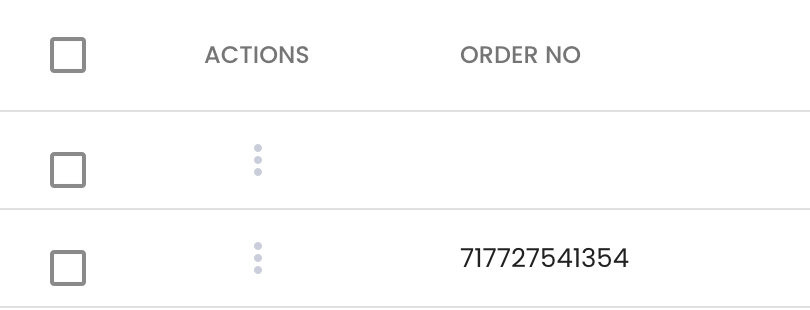
Choose Email, SMS or WhatsApp.
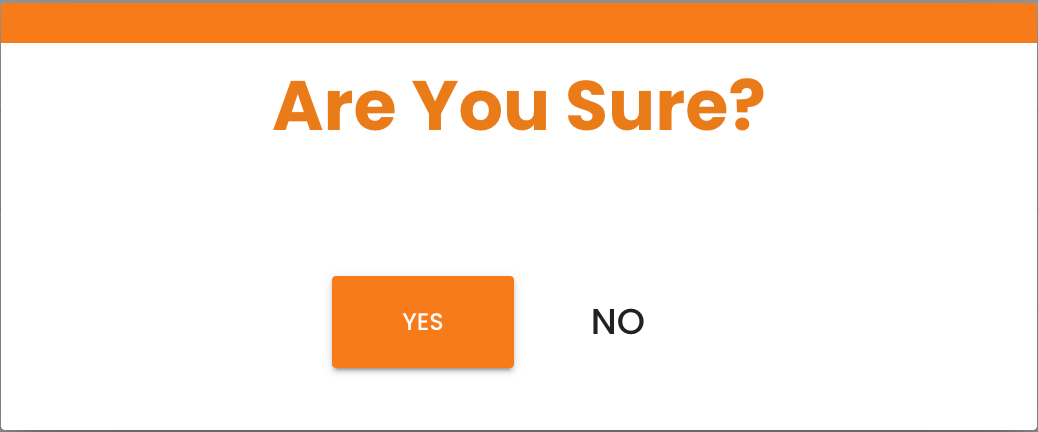
In the Are you sure? window, click Yes. The message Customer notified. appears.
The menu offers a channel only if you ticked Pre-payment for it when you created the link. If the channel you need is not there, copy the Payment URL and send it yourself, or create a new payment link.
To check whether a message was really sent, see My customer did not get the SMS or email.
What happens next?
When the customer opens the link and pays, the payment request becomes Paid in Payment Request > Transactions. See How can I see which transactions are paid and which are not?
What's Next?
- Payment Request -- Configure the plugin, its form fields and fees
- Bulk Payment Request -- Send payment links to many customers at once
- Notifications -- Set up email, SMS and WhatsApp
- Search & Filter Payments -- Find a payment link or list the ones a user created