Change or Reset Your Password
You change your own password inside the Ottu Dashboard. If you forgot it and cannot sign in, use Forgot Password? on the sign-in page, or ask Ottu support to reset it.
How do I change my password?
Who can do it: any user who is signed in.
In the Ottu Dashboard, click the three-dot menu in the top-right corner, next to your name.
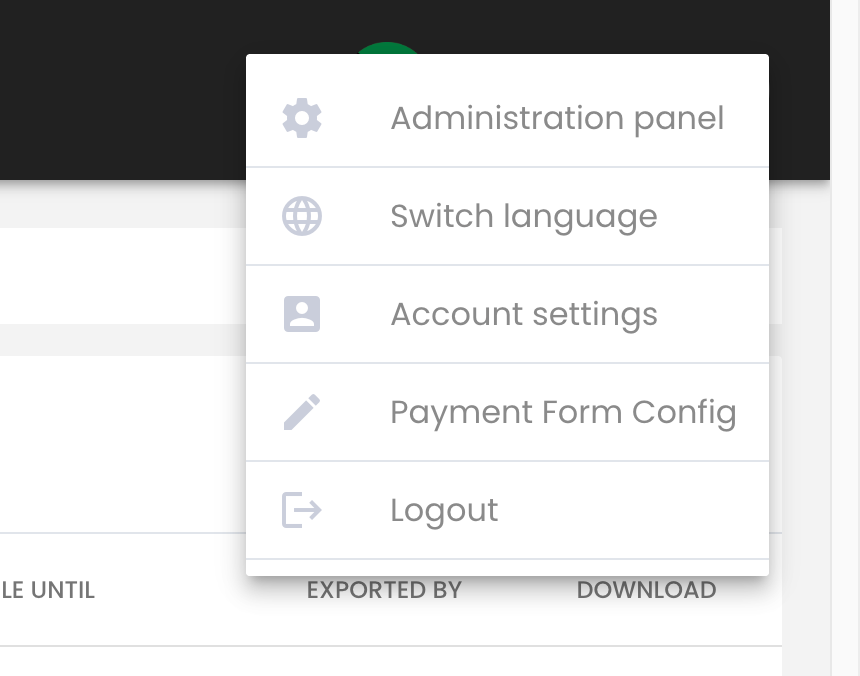
Click Account settings.
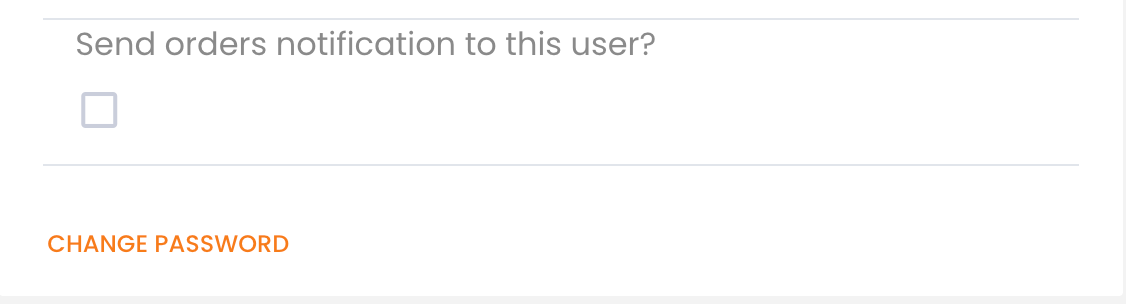
Click Change password.
Type the new password in New password and again in Confirm password.
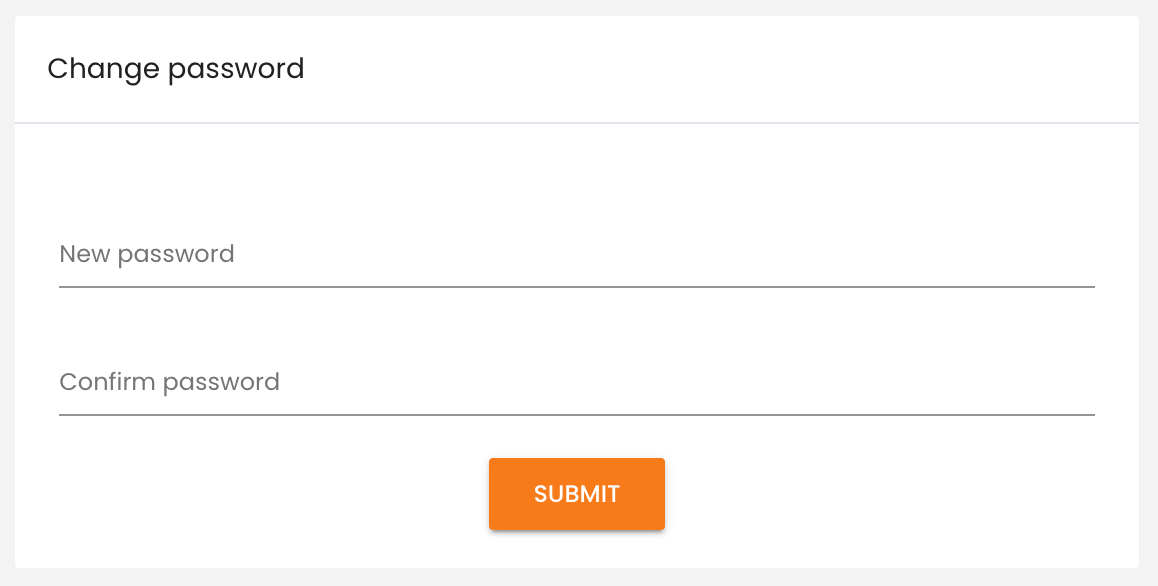
Click Submit.
The message Password changed successfully appears. Use the new password the next time you sign in.
If you sign in with your company account (single sign-on), you have no Ottu password to change: change it at your company's sign-in provider.
I forgot my password
- On the sign-in page of your Ottu Dashboard, click Forgot Password? and follow the instructions.
- If the sign-in page has no Forgot Password? link, ask Ottu support to reset your password, through the live chat or by email to [email protected]. Give:
- the address of your Ottu Dashboard, for example
yourcompany.ottu.net; - your username.
- the address of your Ottu Dashboard, for example
Your password is reset and the new one is sent to the email address saved on your user. When you are signed in again, change it to one only you know, as described above.
An administrator of your Ottu account can also set a new password for you: see the steps below.
Reset the password of another user
Who can do it: an administrator of your account.
In the Ottu Dashboard, click the three-dot menu in the top-right corner and click Administration panel.
In the top menu, click Users, then click the user.

On the General tab, under Password, click Reset password. For a user who has no password yet, the link reads Set password.
Type the new password twice and confirm.
Give the new password to the user in a safe way, and ask them to change it after they sign in.
Password rules
A new password must:
- have at least 8 characters;
- contain at least one digit, one uppercase letter and one special character, such as
!or#; - not be only digits, and not be a common password;
- not be too similar to your username, name or email;
- be different from your current password and your last 5 passwords.
What's Next?
- Users and Access -- Get the list of users on your account
- Why can't I see all the transactions? -- What decides which transactions a user sees
- API Keys -- Credentials for API access, separate from your password