M-Wallet
M-Wallet (merchant wallet) is a stored balance you can grant to a customer in any currency you accept. Once a customer has wallet credit, they can spend it at checkout — fully or partially — on any future order with your business.
Why use M-Wallet
- Refund without returning funds to the original card. Useful when cards expire, or when you want to issue store credit instead of cash back.
- Issue goodwill credit or promotional balances without payment-gateway fees.
- Reduce PG fees on future orders. Customers spend wallet credit first; card only covers the remainder.
How it works
- Customer pays for an order using any payment method.
- You refund to wallet instead of refunding to their card — one action in the dashboard.
- Customer returns for a future order with your business.
- They pay with wallet — fully if the balance covers it, partially with another method otherwise.
Refund to M-Wallet
Refunding to wallet credits the customer's wallet balance instead of returning funds through the payment gateway. The customer can spend the credit on their next order.
When to use this:
- The customer's card has expired and a gateway refund would fail.
- You want to issue store credit, loyalty, or goodwill credit without payment-gateway fees.
- You are processing a goodwill compensation that wasn't tied to a specific payment.
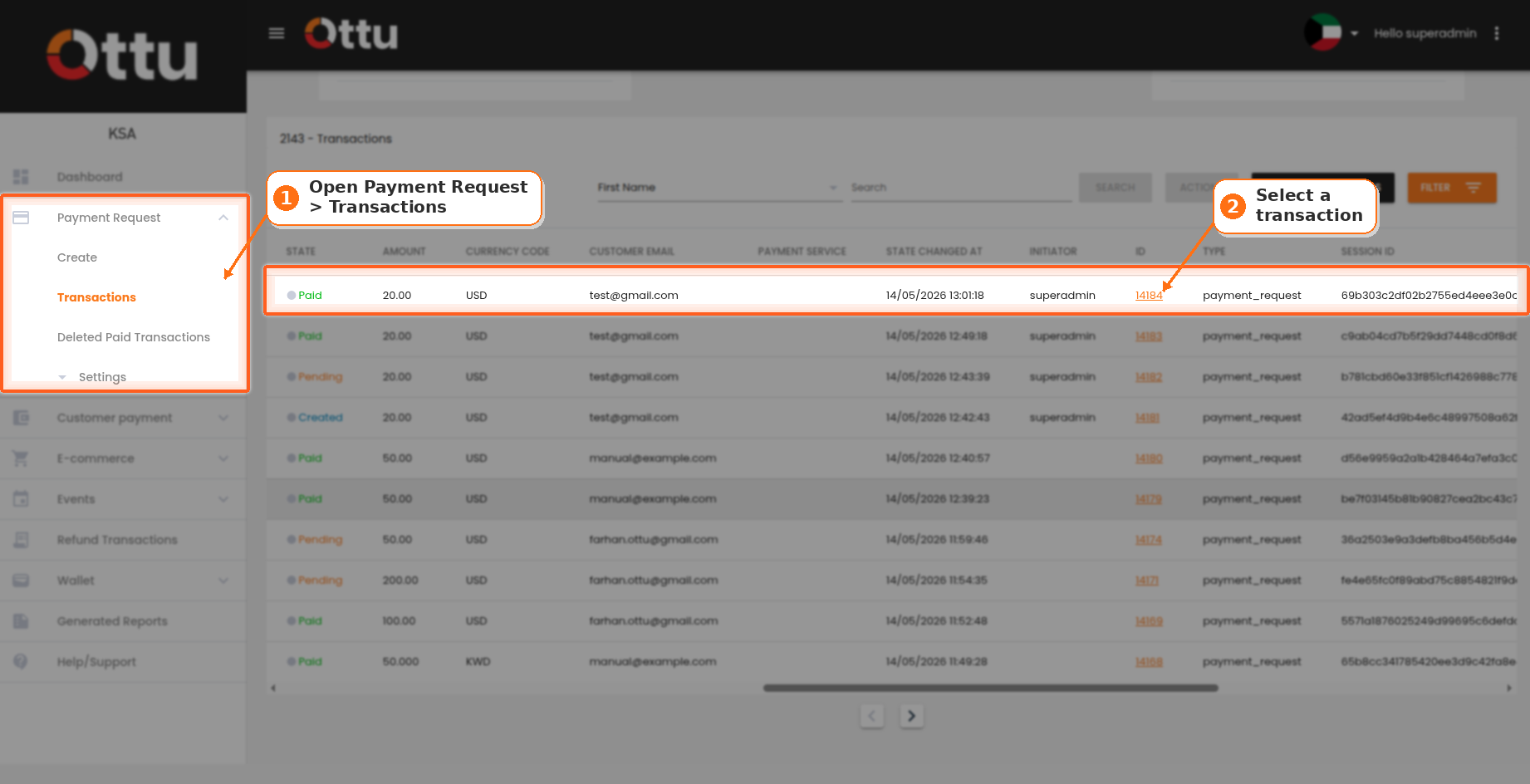
Click on the desired payment transaction
Open the action menu
Click Refund to Wallet
Confirm amount and submit
See the confirmation
The next time the customer reaches checkout in your store (same currency), they'll see Wallet (X.XXX USD) as a payment method. See M-Wallet at Checkout below for the customer-side flow.
M-Wallet at Checkout
This section explains what your customer sees when they have a wallet balance and reach checkout — so you can answer support questions and design messaging on your own site.
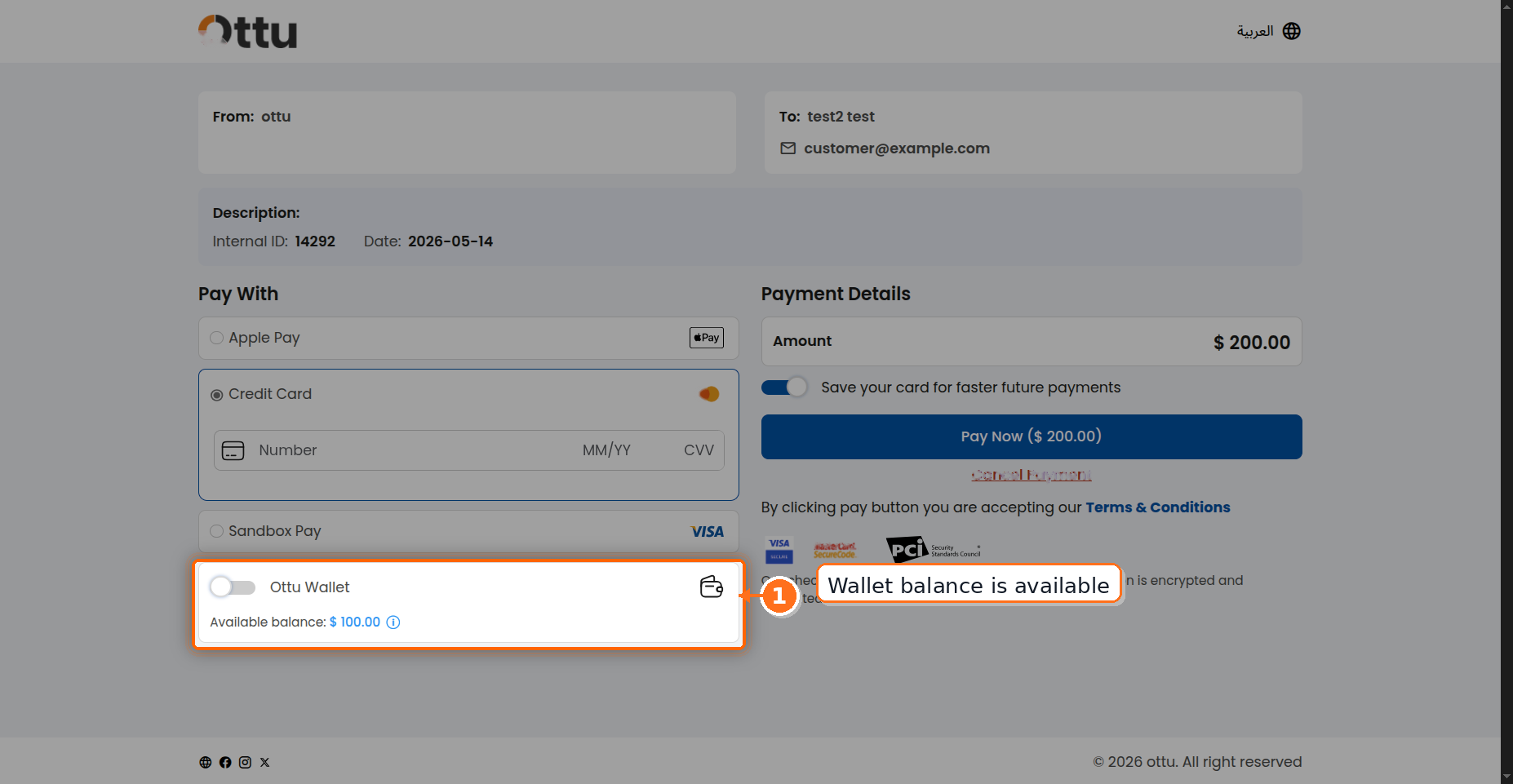
Wallet appears as a method
Full coverage
Partial coverage
Reservation while paying
Automatic release
If a customer abandons, cancels, or fails a payment, the reserved wallet amount is restored to their balance about four hours later. The wait is intentional — it gives slow gateway confirmations time to land. There is no human in the loop.
Rules customers cannot change:
- They cannot choose how much wallet credit to apply — Ottu deducts the required amount automatically, no more.
- They cannot transfer credit between currencies — each currency has its own wallet.
- They cannot use wallet on authorize-only orders. Wallet supports immediate-capture flows only.
The wallet only appears when its currency matches the order currency.
If a checkout offers several payment gateways, make sure at most one wallet per wallet provider can be used for the order currency. If two gateways each carry a wallet from the same provider for that currency, the checkout cannot be created. See Only one wallet per provider per checkout in the developer docs.
What you can do:
- Display the customer's wallet balance on your own site or app — call the Wallet Accounts API.
- Refund any future order to the same wallet to top it up.
- View full credit and debit history per customer in M-Wallet Reporting below.
How fees are charged
When an order carries a processing fee, the wallet and the payment gateway (PG) do not share that fee. Ottu applies one simple rule:
The wallet leg is fee-free. The processing fee always lands on the PG remainder — the part of the order paid through the gateway.
The wallet only ever covers principal (the order amount itself). It never carries a fee. So whether a fee is charged at all depends on whether any part of the order still has to go through the PG.
This produces three cases at checkout. The examples below all use the same order: amount 50.000, fee 10.000, total 60.000.
| Case | Wallet balance | Wallet covers | PG covers | Fee charged | Customer pays |
|---|---|---|---|---|---|
| No wallet | 0 (or no wallet) | nothing | 50.000 principal + 10.000 fee | 10.000 | 60.000 |
| Partial wallet | below the order amount — e.g. 30.000 | 30.000 principal | 20.000 principal + 10.000 fee | 10.000 | 30.000 |
| Full wallet | at or above the order amount — e.g. 50.000 or 100.000 | 50.000 principal (full) | nothing — no PG hop | 0.000 | 0.000 |
When the customer's wallet balance is equal to or greater than the order amount, the wallet covers the entire principal and the payment never reaches a gateway. With no PG remainder, there is no fee to charge — the customer pays exactly the order amount, and the Pay button shows 0.000.
Why the fee never moves to the wallet. The processing fee exists to cover the cost of the gateway transaction. A fully wallet-covered payment is an internal balance transfer with no gateway transaction, so there is no cost to pass on. Partial-wallet payments still hit the gateway for the remainder, so the full fee rides along on that PG leg — it is not split in proportion to how much the wallet covered.
In the partial-wallet case above, the customer pays 30.000 at checkout, but only 20.000 of that is principal — the other 10.000 is the fee. The wallet still contributed its full 30.000 toward principal. The fee did not reduce the wallet's contribution; it was added on top of the PG leg.
M-Wallet Reporting
The dashboard provides three screens for tracking wallet activity: Accounts, Ledger, and Operations.
Accounts screen
Lists every customer who has a wallet account with your business, with current balance per currency.
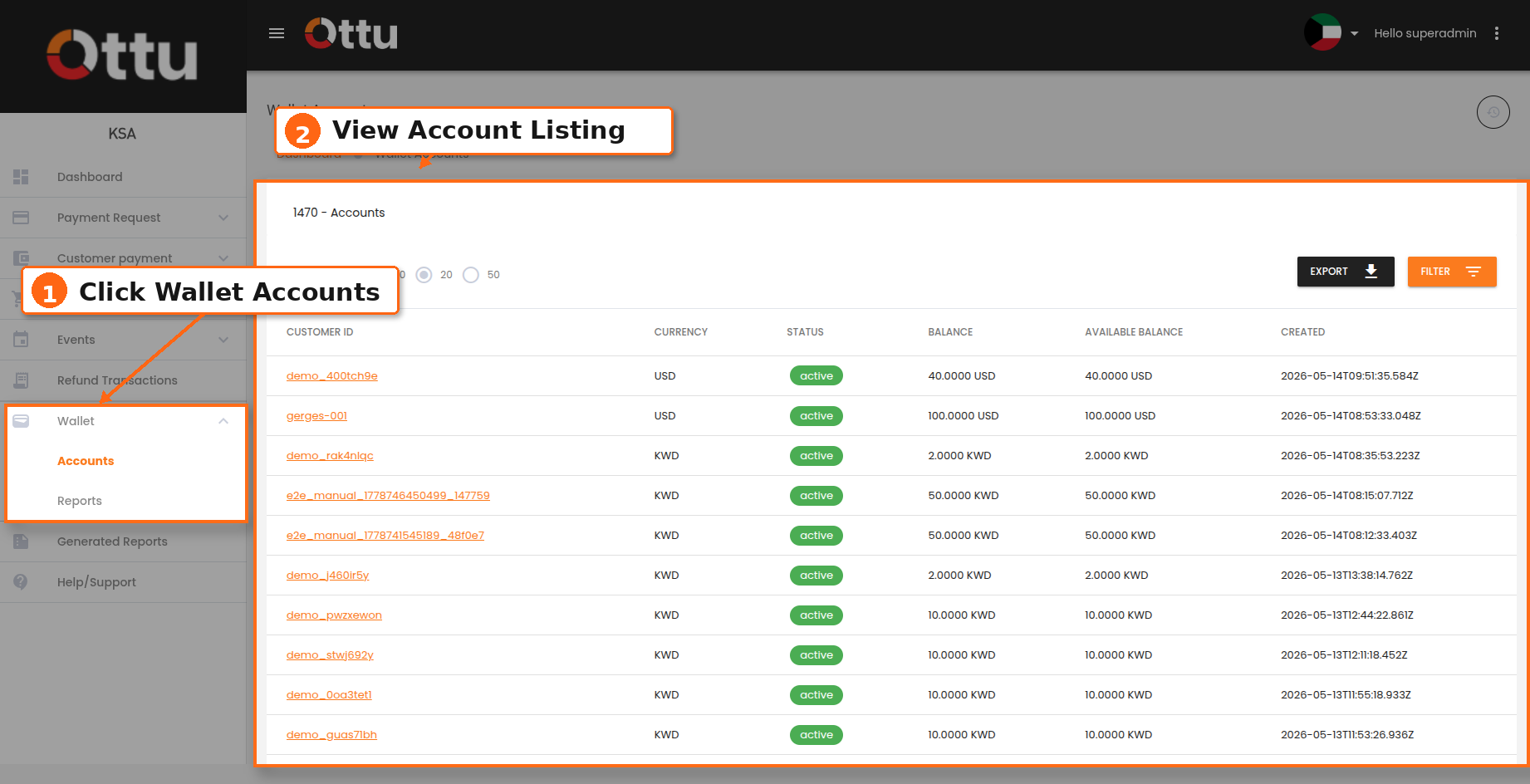
Open Wallet → Accounts
Search and filter
Open an account
Ledger screen
Every credit, debit, and reservation for an account lives in the ledger. Entries are immutable — corrections are made by adding reversal entries, never by editing the originals.
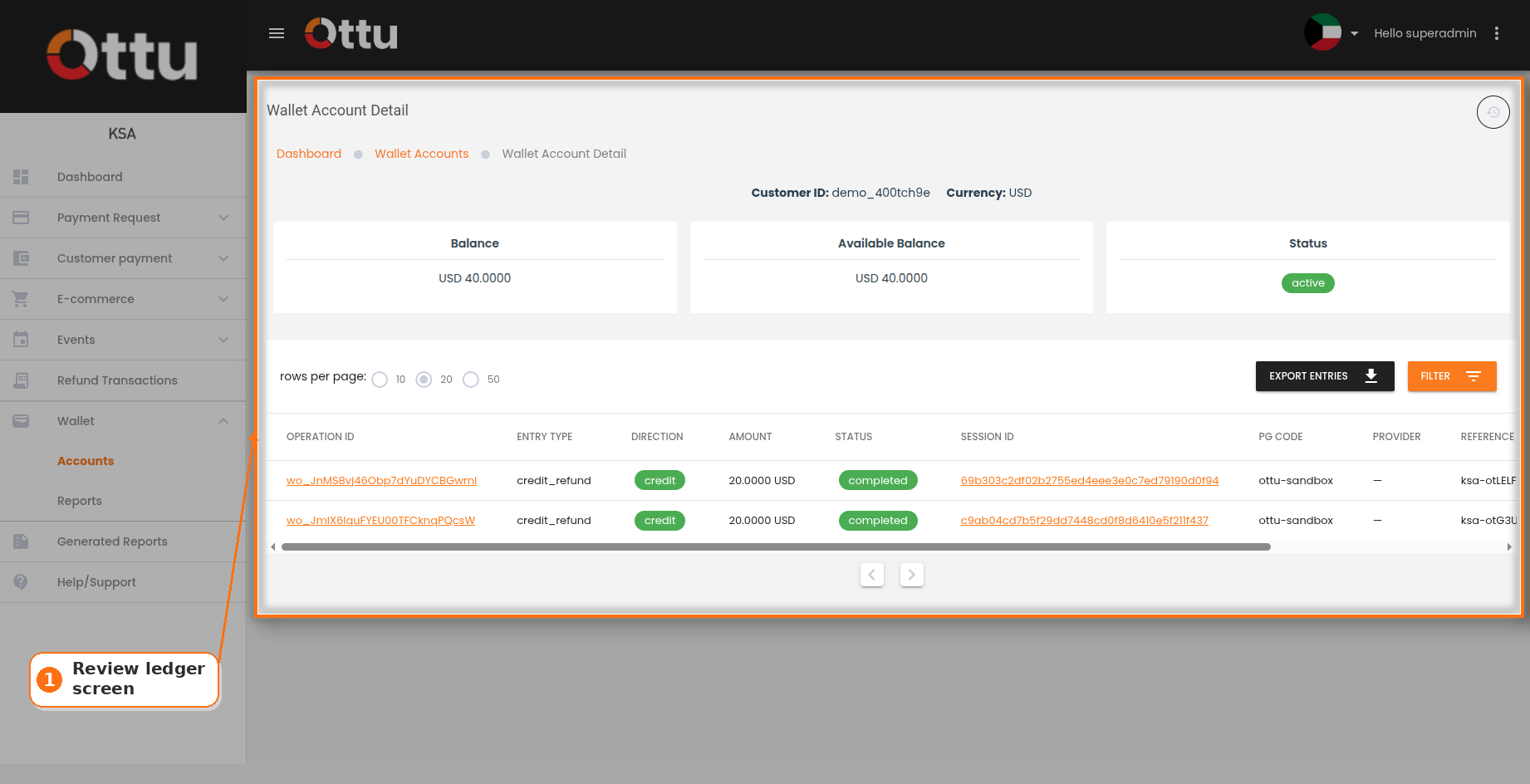
View the entries
Filter the entries
What each column means
- Operation ID — unique identifier for the ledger row.
- Entry Type —
credit_refund,debit_payment,debit_adjustment,credit_adjustment,reserve,release,expire, orreversal. - Amount — signed amount in the wallet currency.
- Direction — high-level accounting direction:
credit(balance increases) ordebit(balance decreases). Use it for quick filtering; see Entry Type for the exact operation. - Status — current state of the entry (
pending,completed,failed, etc.). - Linked session — the original payment session this entry references, if any.
- Timestamp — when the entry was recorded.
Operations screen
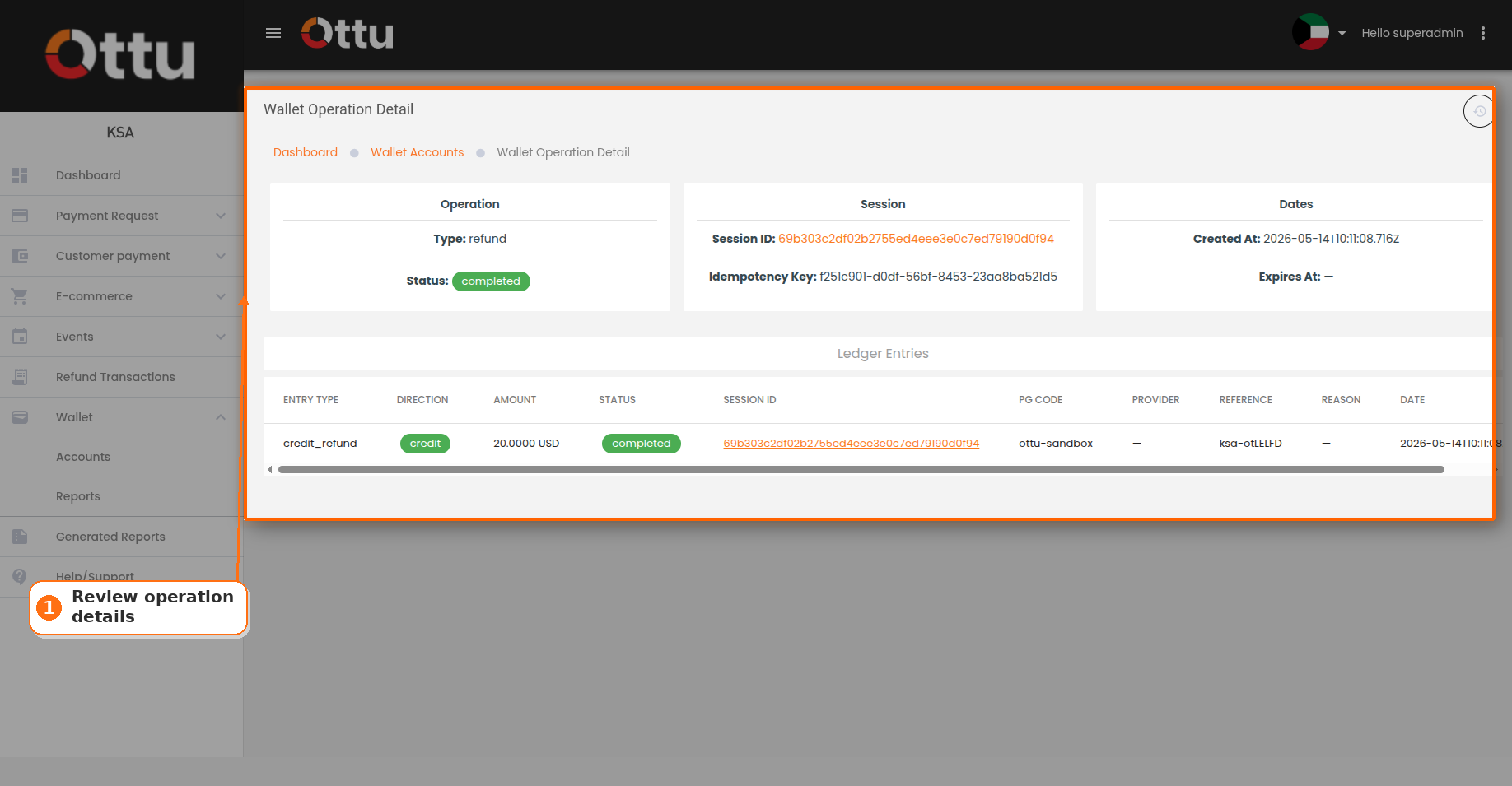
Lists individual wallet operations (a single credit, debit, or reservation cycle) across all accounts. Useful for audit and reconciliation.
Reconciliation
Wallet-enabled payments settle across two separate rails — the wallet rail (funds moved internally between wallet balances, no card scheme involved) and the PG rail (funds charged through a payment gateway and settled by the acquirer). A single customer order may use one rail or both, so your month-end reconciliation needs to account for both sources of funds.
This section explains how Ottu represents a wallet-touched payment in your transaction records, and gives a step-by-step procedure for matching it against your wallet ledger and PG settlement files.
How a wallet payment appears in your records
Ottu records every order as a parent transaction at the full order amount. When part (or all) of the order is paid from the customer's wallet, Ottu also creates a child transaction linked to the parent, carrying just the wallet portion. The child shares the same session_id as the parent but has its own order_no.
There are two flows you will see:
| Flow | Wallet covers | What you see in records |
|---|---|---|
| A — Full wallet (checkout) | 100% of the order | Parent at the full amount + one child at the same amount. No PG attempt. |
| B — Partial wallet + PG (checkout) | Less than 100% | Parent at the full amount, with one PG attempt for the remainder + one child for the wallet portion. |
After the wallet leg settles, the parent transaction records a zero-amount attempt with the form of payment set to wallet. This is bookkeeping — it tells you the parent was finalized through the wallet rail. In partial-wallet flows (B), this blank attempt sits alongside the PG attempt; in full-wallet flows (A), it is the only parent attempt. You should treat it as a finalization marker, not as a separate charge.
Amount fields on a wallet-touched payment
On the parent transaction page, three amount fields together tell you how the order was paid:
amount— the total transaction amount (the full order value).settled_amount— the paid or authorized amount in the original currency, excluding fees. When the order is fully settled across both rails, this equalsamount.paid_amount— the total paid amount in the original currency, including fees, possibly after currency exchange. This is the PG-rail total — the portion the customer was actually charged through the gateway. Use it to check the PG-side number.
On the child transaction page, you'll see just amount — the wallet portion.
Example — partial wallet payment of 20.00 USD
A customer pays a 20.00 USD order with 10.00 USD from their wallet and 10.00 USD on a card:
Parent transaction
| Field | Value | Notes |
|---|---|---|
amount | 20.00 USD | Total order value. |
settled_amount | 20.00 USD | Total settled across both rails (PG + wallet). |
paid_amount | 10.00 USD | PG-rail charge actually paid by the customer. |
state | PAID | The order is fully paid. |
Child transaction (linked to the parent — same session_id, new order_no)
| Field | Value | Notes |
|---|---|---|
amount | 10.00 USD | The wallet leg. |
state | PAID | Wallet leg committed. |
Reconciliation identity — every wallet-touched parent satisfies this:
parent.amount == parent.paid_amount + sum(child.amount for each wallet child)
In plain English: order total = PG-rail total + wallet-rail total.
Where to find these fields in the dashboard
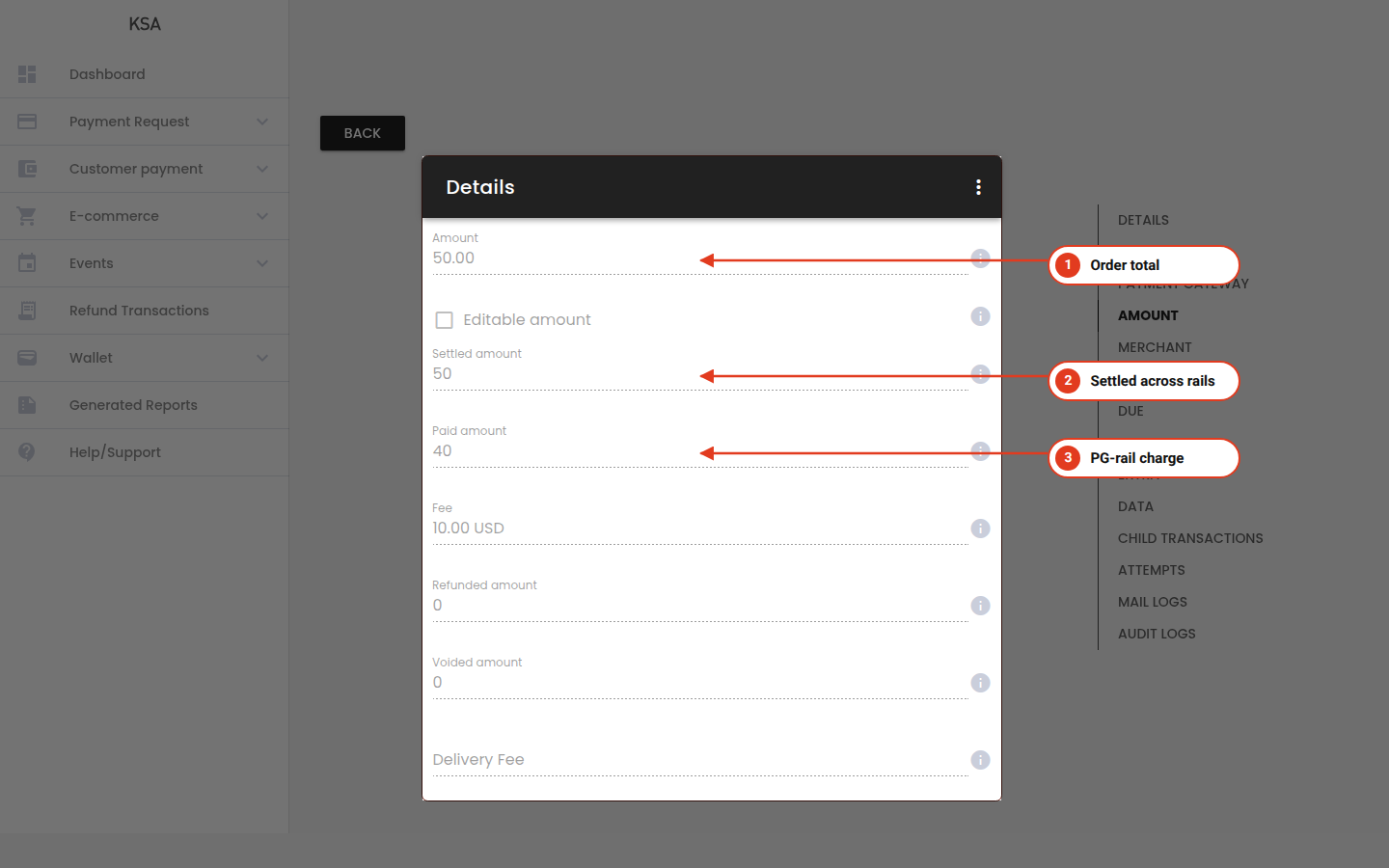
Parent transaction — amount fields
Linked child transaction
Operations screen — wallet leg
Where to find the wallet portion of a payment
Each parent transaction's webhook payload (and dashboard detail page) carries two arrays you will use during reconciliation:
transactions— the parent's child transactions. Contains one entry for the wallet leg of a wallet-touched payment.customer_wallet_transactions— one entry per wallet provider that touched this payment. Each entry includesprovider_code,amount(in the order currency),currency,operation_id, and the verbatimwallet_responsefrom the wallet service.
customer_wallet_transactions is omitted when no wallet was usedThe key is not present at all on payments that never touched a wallet. Your reconciliation script should treat a missing key the same as an empty list.
Multi-wallet stacking. If your setup supports more than one wallet provider (for example, M-Wallet + Qitaf), customer_wallet_transactions will contain one entry per provider that contributed funds. Sum the amount fields to get the total wallet portion of the payment. Ordering is not guaranteed — treat the array as a set.
Cross-currency reservations. When the wallet's native ledger currency differs from the order currency (rare, but possible), the entry includes wallet_amount_native and wallet_currency fields alongside amount and currency. Reconcile against the wallet ledger using the native values; use amount/currency for the order-side math.
Month-end reconciliation procedure
Run this once per settlement period (typically monthly). The goal is to prove that every unit of order revenue lands in exactly one of two places: your PG settlement file or your wallet ledger.
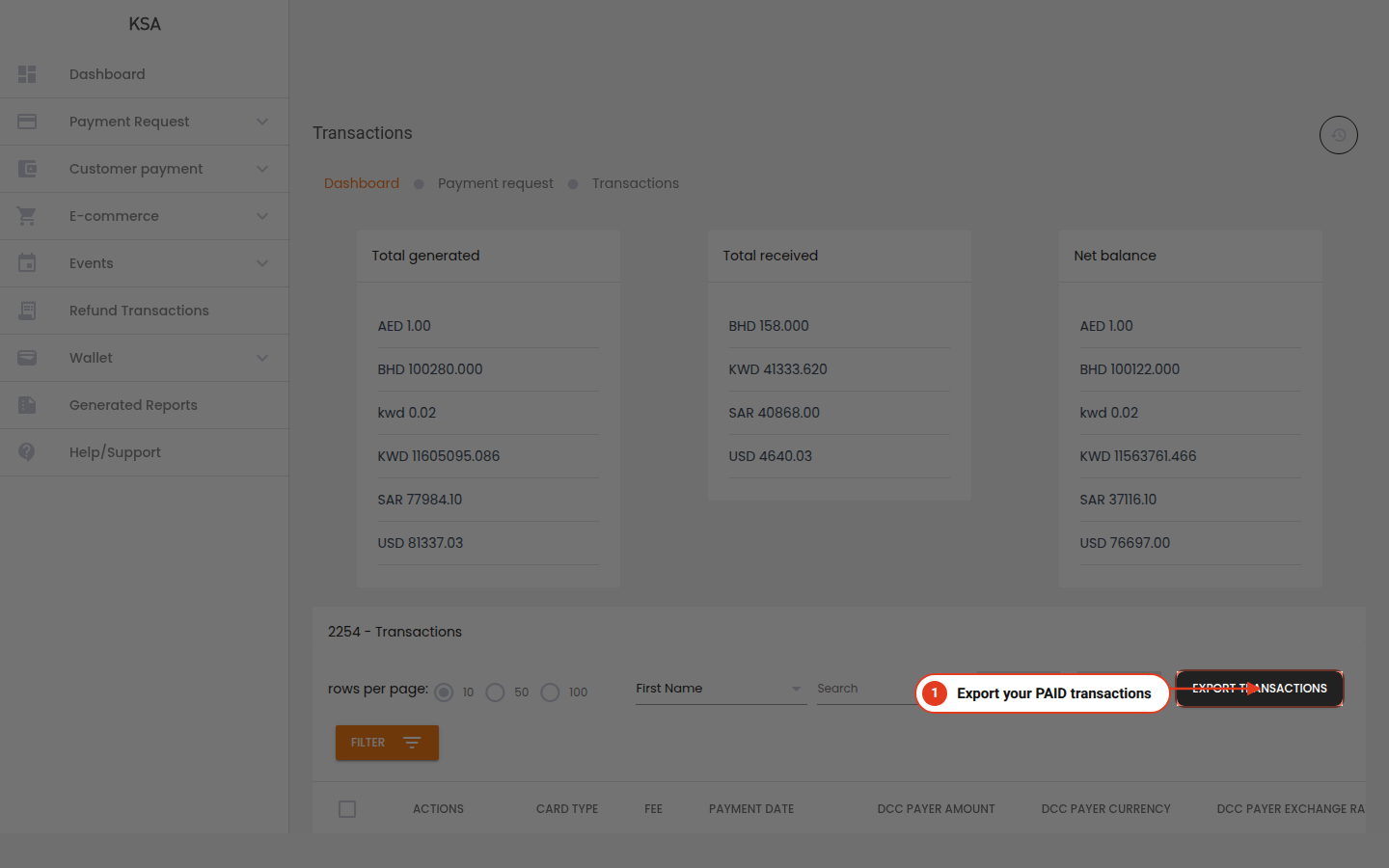
Export your paid parent transactions
Classify each payment by flow
Split each payment into wallet and PG portions
Match the PG portion against your gateway settlement
Match the wallet portion against your wallet ledger
Reconcile refunds-to-wallet separately
amount, paid_amount, settled_amount, currency_code, order_no, and session_id.Every wallet leg — debit, credit, reserve, release — has a single canonical row on the Operations screen, keyed by operation_id. When a number disagrees between the PG file and the parent transaction, the Operations row tells you what actually moved on the wallet rail.
Edge cases to watch for
- Abandoned or cancelled wallet payments. If a customer reserves wallet funds but never completes the payment, the reservation is released automatically about four hours later. The released leg may still appear in
customer_wallet_transactionsso you can audit attempted-but-released holds — check the state of the parent transaction (FAILED,CANCELLED) before counting wallet amounts. - Refund operation IDs differ from payment operation IDs. A refund to wallet creates a fresh
operation_idfor the credit; it does not reuse the original payment's debit ID. Always match refunds to original payments throughsession_idororder_no, not throughoperation_id. - Wallet response format is provider-specific. The
wallet_responsefield incustomer_wallet_transactionsis the verbatim body returned by the wallet service. Treat it as audit-only — do not parse it for reconciliation logic. - Only the parent fires webhooks. Child transactions do not emit their own webhooks. The child's state is always visible inside the parent's webhook payload under
transactions.
Exporting
Export Accounts or Ledger data as CSV or XLSX for offline analysis and accounting. Exports are generated asynchronously — you queue a report from the account, then pick it up from Generated Reports once it's ready.
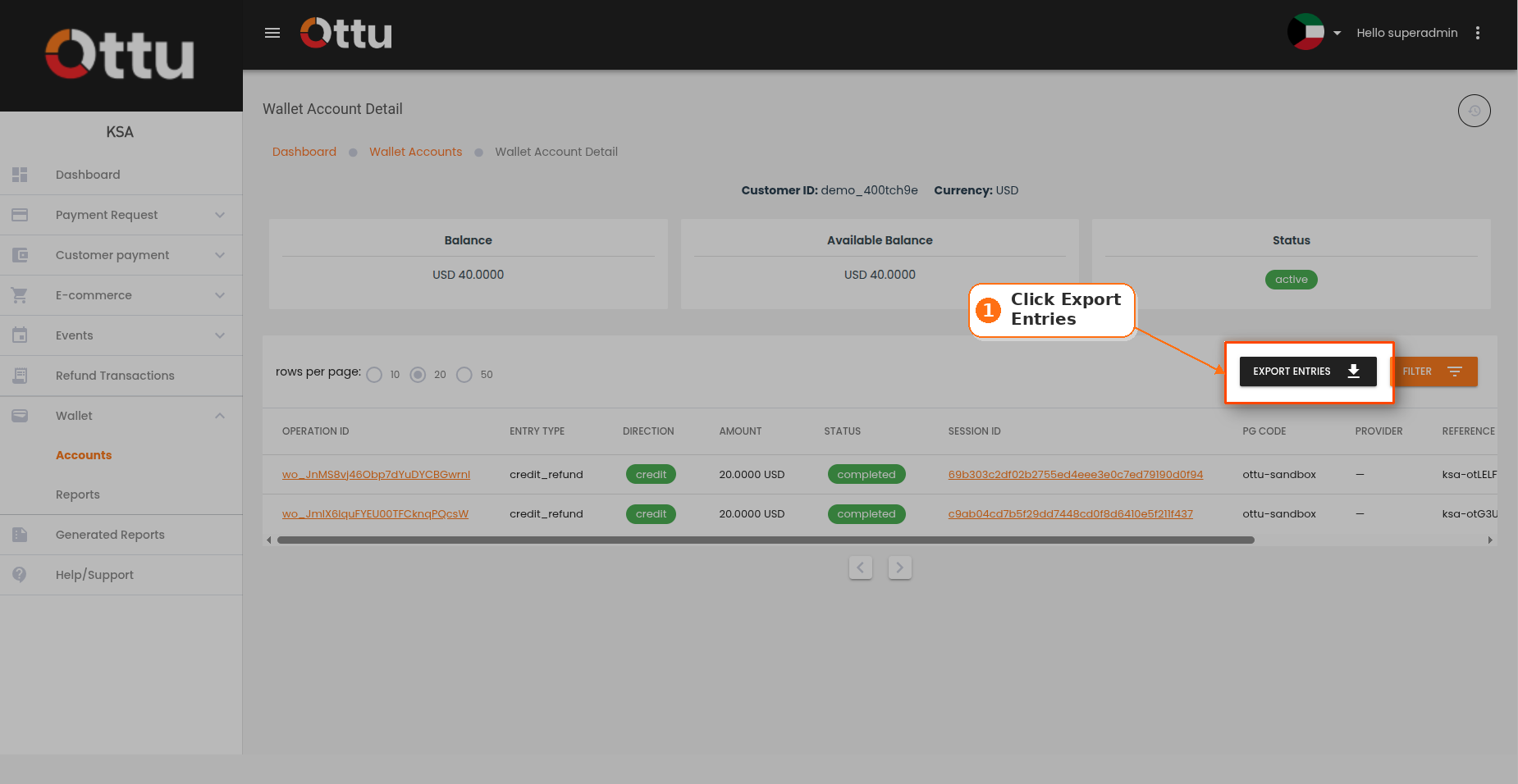
Click Export Entries
Choose filters and format
Download from Generated Reports
Things to know
- One wallet per currency. A customer who buys in both EUR and USD has two separate wallet balances.
- No PII. The wallet service stores only the customer ID and balance — no card details, no personal information.
- Automatic release. If a customer abandons checkout, their reserved wallet funds are released automatically after about four hours. No action required from you.
- Immutable history. Every credit, debit, and reservation is recorded permanently. Corrections are made by adding an opposing entry — never by editing the original.
- No expiry. Wallet credit does not expire.
- Wallet appears at checkout when: the customer has positive balance in the order currency and the order is set to capture immediately. Authorize-only orders do not show wallet.
FAQ
What's Next?
- M-Wallet for developers — API and SDK integration.
- Payment Management — viewing and managing all transactions.
- Refund to M-Wallet (developer reference) — the API behind the dashboard refund flow.